
Losing photos, videos or documents from an SD card feels worse than almost any other kind of data losses. Mostly because the files are usually irreplaceable. If you’re searching for mac sd memory card recovery options right now. Chances are a card just failed, got formatted by accident or stopped mounting altogether. The good news has that most of these situations are fixable, provided you act carefully and don’t keep using the card.
This guide walks through exactly how SD card recovery mac works on macOS. What actually causes data loss in the first place and how to choose software that fits your specific situation. No fluff, no filler just the information you need to get your files back.
Why SD Cards Lose Data in the First Place
SD cards have small, portable and genuinely reliable for their size, but they aren’t immune to failure. Understanding the cause of your data loss helps you pick the right recovery approach.
Accidental deletion tops the list whether that’s hitting delete on the camera itself or wiping the card from a computer. Formatting comes next often triggered by a camera prompting “card not recognized” and a user tapping format without thinking twice.
Physical and logical corruption make up the trickier category. A card pulled out mid write a sudden power loss, or a failing memory chip can all leave the file system in a broken state. In these cases, the card might show up as RAW, prompt you to format it or simply refuse to mount.
How Mac SD Card Recovery Software Works
Recovery tools scan the storage on your card at a much deeper level than Finder ever does. Instead of just reading the visible file table. They look for the underlying data patterns that remain even after a file gets deleted or a card gets formatted.
There are two main scanning approaches worth understanding before you start.
Quick Scan vs. Deep Scan
A quick scan reads the file system’s existing records which is fast and works well for recently deleted files where the directory structure is still mostly intact.
A deep scan, sometimes called a signature scan, ignores the file system entirely and searches the raw data for recognizable file signatures. It takes longer but it’s the only method that works on severely corrupted or RAW cards. Since it rebuilds files from patterns rather than relying on file system references. Though it typically can’t recover original filenames or folder structure.
What to Look for in SD Card Data Recovery Software Mac
Not all recovery tools are built the same and picking blindly wastes time. Before downloading anything, check for the following:
- Compatibility with the exact macOS version you’re running including current releases
- Support for exFAT and FAT32, since almost all SD cards use one of these two formats
- A genuine deep scan mode built for formatted or RAW cards not just a quick scan renamed
- A file preview feature so you can confirm data is intact before paying for anything
- A free trial that actually shows you recoverable files not just a locked results screen
Skipping any of these usually means wasted downloads and wasted time, especially when a card is already in a fragile state.
Comparing Recovery Approaches for SD Cards
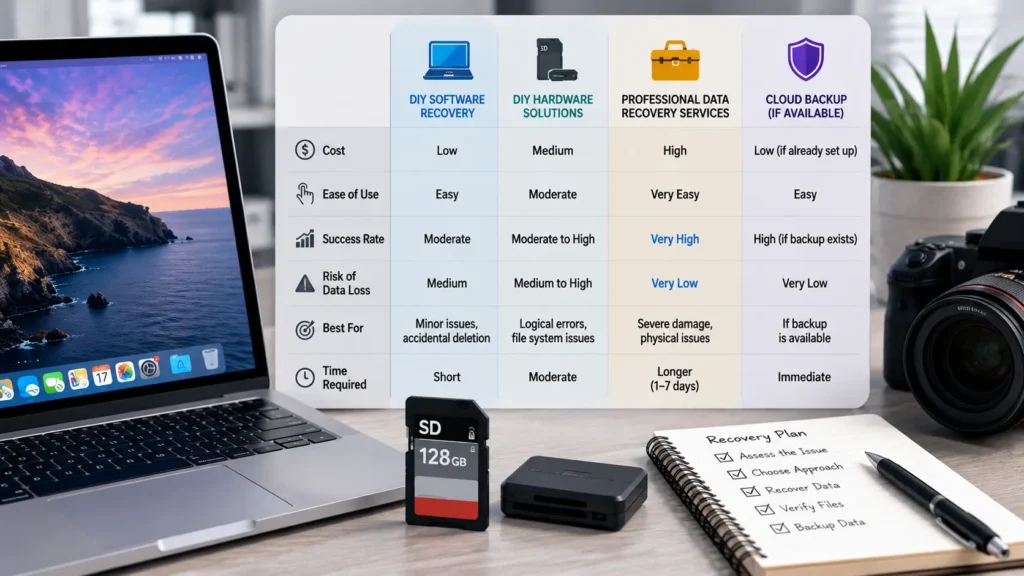
| Recovery Method | Best For | Limitation |
| Quick scan | Recently deleted files | Fails once the card has been reused or reformatted |
| Deep scan | Formatted or RAW cards | Slower, and filenames are often lost |
| Disk imaging first | Physically failing cards | Requires extra storage space for the clone |
| Command-line tools | Free, no cost recovery | Steep learning curve for non technical users |
Disk imaging deserves special mention here. Cloning a failing SD card to an image file before scanning protects the original card from further wear. Which matters a lot if the card is showing early signs of physical failure.
Steps to Recover Files From an SD Card on Mac
Follow this general process regardless of which mac sd card recovery tool you choose, since the fundamentals stay the same across most software.
First stop using the SD card immediately. Every new photo or file written to the card increases the chance of overwriting the data you’re trying to recover.
Second connect the card to your Mac using a card reader rather than through the camera itself. Since a direct connection is generally more stable for scanning.
Third install recovery software and run a scan targeting the SD card specifically not your entire hard drive. Most tools let you filter by connected external devices.
Fourth, preview the results before recovering anything. This step confirms whether your photos and videos are actually intact, not just present as broken fragments.
Finally save recovered files to your Mac’s internal drive or a different external drive entirely. Never save recovered files back onto the same SD card you’ve recovering from.
Common Mistakes That Make SD Card Recovery Harder
A surprising number of recovery failures come down to avoidable mistakes made before recovery software even opens.
Continuing to shoot photos or videos on a card that’s already showing errors is the single biggest culprit, since new writes can overwrite exactly the data you need back.
Trying multiple recovery tools back to back without pausing to check results in between can also cause harm, particularly if a tool prompts you to “repair” or reformat the card as a troubleshooting step.
Running recovery software directly on the card without imaging it first is risky for cards that are physically failing, since repeated read attempts on a dying card can push it past the point of recovery entirely.
Free vs. Paid Recovery Software: What You Actually Get
Free versions of most sd card data recovery mac tools let you scan and preview lost files but recovering them typically requires a paid licenses. This freemium approach is standard across the industry nor than a red flag.
Genuinely free, no cost options exist but they usually trades convenience for capability. Command line, signature based tools recover data without charging anything but they skip filenames, folder structures and any kind of preview interface.
For most people dealing with irreplaceable photos or footage, a modest paid license is worth it for the preview functionality alone. Since it confirms your files are recoverable before you spend anything.
When to Consider Professional Data Recovery Services
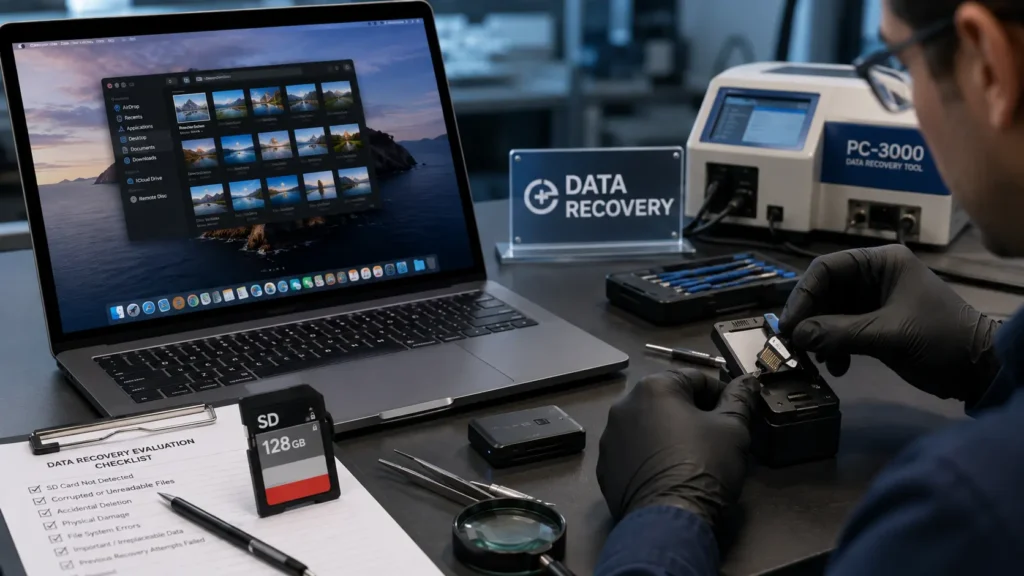
Software handles the vast majority of SD card recovery cases but physical damage changes the equation. A cracked card, water damage or a chip that’s no longer detected by any computer usually falls outside what consumer software can fix.
In these situations a professional data recovery lab with cleanroom equipment is the only realistic option. Though it costs significantly more and takes longer than running recovery software at home.
Final Thoughts
Recovering lost files doesn’t are to be stressful once you understand what’s actually happening on the card and which tool fits your situation. Whether you’re dealing with a simple accidental deletion or a formatted. RAW SD card and mac sd memory card recovery is almost always possible as long as you stop using the card and act before new data gets written over the old. For another practical recovery walkthrough, see our guide on [How to Restore Data Backup on 3DS].
FAQs
Q: Where can I download SD card recovery software for Mac?
You can download SD card recovery software directly from the developer’s official website such as Disk Drill, EaseUS or Stellar. Avoid third party download sites. Since these often bundle outdated versions or unwanted extras alongside the installer.
Q: Is there a free download for Mac SD memory card recovery?
Yes most SD card recovery tools offer a free download. Lets you scan your card and preview recoverable file. Actually restoring those files usually requires upgrading to a paid version afterward.
Q: What’s the best free SD card recovery option for Mac?
PhotoRec is a genuinely free, open source option that recovers files without any payment. It works well for photos and videos but skips original filenames and uses a command-line interface instead of a visual one.
Q: Can I recover SD card data on Mac without paying anything?
Yes, free tools like PhotoRec recover files at no cost, though most mainstream recovery apps only offer free scanning and preview, with actual file recovery locked behind a paid license.