
Cancelling a subscription should take two minutes not twenty. Yet every week forums fill up with people asking how to cancel ChatGPT subscription on website because the cancel button seems to vanish. The billing page loops back to nowhere or the charge shows up again a month later anyway.
The good news is that cancelling through chatgpt.com is genuinely simple once you know exactly where to click. This guide breaks down the full process, explains why the button sometimes disappears and covers what actually happens to your account and your data and your money once you confirm.
Why People Search for How to Cancel ChatGPT Subscription on Website
Most confusion doesn’t come from a broken feature. It comes from mismatched expectations about how billing works across different platforms.
OpenAI runs three separate billing rails: the website itself, Apple’s App Store, and the Google Play Store. Each one owns its own subscribers, and each one has its own cancel switch. If you signed up in a browser but try to cancel from your phone (or the reverse), the option simply won’t be there and that’s when people assume something is broken.
Add in rising subscription fatigue, more competitive pricing from rival AI tools, and general belt-tightening on recurring software costs, and it’s easy to see why so many users are actively looking for a clean exit path in 2026.
Before You Begin: Confirm Your Billing Source
Check your bank or card statement first. The merchant name tells you everything. If you’re wondering how ChatGPT-related charges or account connections work with banking services, read our How Does ChatGPT Appear on Citibank? guide for a detailed explanation.
A charge labeled “OpenAI” or “chatgpt.com” means your subscription lives on the website and this guide applies directly to you. A charge labeled “Apple” means Apple controls billing through your Apple ID and you’ll need to cancel from your iPhone or iPad settings instead. A charge from “Google” means the same logic applies through the Play Store.
Skipping this check has the single biggest reason cancellation attempts fail. Confirm it once and the rest of the process has straightforward.
How to Cancel ChatGPT Subscription on Website
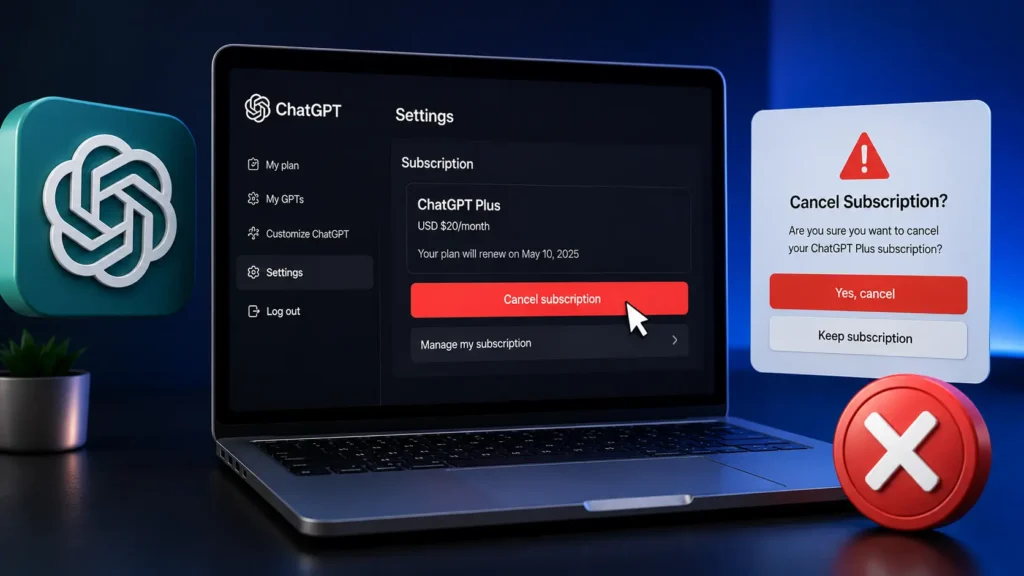
If your account have created and billed directly through chatgpt.com. Here’s the exact sequence to follow:
- Open a browser then log in to your account at chatgpt.com.
- Click your profile icon located in the lower corner of the sidebar.
- Open the Settings menu and move into the Billing or Subscription section.
- Locate the option labeled something like “Manage Plan” or “Cancel Plan.”
- Confirm the cancellation then the pop up prompt appears.
What Happens After You Cancel
Cancelling havsn’t switch off your access instantly and it doesn’t touch your existing content.
Paid features stay active until your current billing period runs out. So you keep the benefits you already paid for. Your saved chats, custom assistants and uploaded files remain exactly where you left them. Your account simply reverts to the free plan once the cycle ends not than being deleted or restricted immediately.
If you change your mind, resubscribing is usually instant and restores full access right away.
ChatGPT Refund Policy Explained
Subscription charges are generally treated as non-refundable once a billing cycle begins. That said, there are a couple of meaningful exceptions worth knowing.
Users located in the European Union, United Kingdom or Turkey typically have a 14-day withdrawal window under regional consumer protection rules, which allows for a refund request regardless of usage. Outside those regions, accidental or duplicate charges reported quickly after billing sometimes qualify for a refund on a case by case basis through support.
Timing also matters beyond refunds. To avoid getting billed for an additional cycle and cancel at least a full day before your renewal date rather than waiting until the last moment.
Mobile Cancellation: iPhone and Android
If you originally subscribed through a mobile app not than the browser, the website’s billing page won’t show a cancel option at all and that’s expected behavior rather than a glitch.
For subscriptions started on iPhone or iPad, cancellation happens through the device’s Settings app and under your Apple ID and then Subscriptions. For Android, it has handle inside the Google Play Store under Payments and Subscriptions. In both cases, simply deleting the app have not stop billing. The subscription is to be cancelled directly through the respective app store.
Business and Enterprise Plans
Team, Business and Enterprise level subscriptions follow a different path than individual accounts.
Only a workspace owner or a designated billing administrator can cancel these plans and the option sits inside workspace level settings not than a personal profile. Enterprise agreements are often contract based, meaning cancellation may involve a notice period or a conversation with an account representative not than a simple button click.
Individual team members generally cannot cancel a shared workspace plan from their own personal login. So if you’ve on a company account then check with whoever manages billing internally.
Alternatives Worth Considering
Cancelling cann’t have to mean walking away from AI tools entirely. Several competitors have closed the gap significantly and depending on your workflow and one might genuinely suit you better. If you’re comparing AI subscriptions before making a switch, our Claude Pro vs Max: Plan You Work in 2026 guide explains how Claude’s paid plans compare in pricing, usage limits, and features.
| Priority | Consider |
| Long documents and coding projects | Tools with larger context windows |
| Research with verifiable sources | Search-first AI assistants with citations |
| Deep integration with existing apps | Ecosystem-native assistants tied to your productivity suite |
| Lower monthly cost | Free tiers or budget friendly multi model apps |
If you’re specifically looking for creative AI tools after cancelling ChatGPT, check out our guide to ChatGPT Alternative Image Edit AI, where we compare AI-powered image editing platforms. Testing a free tier elsewhere before committing to a new paid plan has usually the safest way to compare quality without financial risk.
Final Thoughts
Working out how to cancel ChatGPT subscription on website really comes down to one habit: match where you signed up to where you cancel and do it a day ahead of your renewal date. Once you’ve confirmed your billing source and followed the steps above. The rest of the process has quick, reversible and doesn’t put your existing data at risk. Developers exploring alternatives beyond ChatGPT can also read Claude Code vs GitHub Copilot to compare two of the most popular AI coding assistants available today.
FAQs
How do I cancel ChatGPT on my website?
Log in at chatgpt.com, click your profile icon, go to Settings → Billing (or “Manage Plan”), then select Cancel Plan and confirm. This only works if you actually subscribed through the website — if Apple or Google billed you then the site won’t show a cancel option.
How do I cancel a subscription through a website?
This has the general version of the same steps: log into your account on the site, find Settings or Account, locate the Billing/Subscription section and choose Cancel or Manage Plan. Most sites confirm with an email — keep it as proof.
How do I cancel my ChatGPT subscription if it won’t let me do it on my phone app?
The ChatGPT app itself usually doesn’t handle cancellation — it just redirects you to whichever store billed you. Check your phone’s own subscription settings instead:
- iPhone: Settings → your name → Subscriptions → ChatGPT → Cancel Subscription
- Android: Google Play Store → profile icon → Payments & subscriptions → Subscriptions → ChatGPT → Cancel Subscription
Deleting the app won’t stop the charges — you have to cancel through the store.
How do I stop auto payment for ChatGPT?
Cancelling the subscription (via whichever platform actually billed you — web, Apple, or Google) automatically stops future auto-renewal. There’s no separate “turn off auto-pay” toggle; cancelling is the only switch. Just do it at least 24 hours before your next billing date so you’re not charged for one more cycle.