
Snap Map keeps friends connected by showing everyone’s live location in real time but that same feature can feel invasive on days. When you want to stay off the radar. Knowing how to pause Snapchat location lets you enjoy the app without live streaming your every move.
This guide covers every reliable method. It explains what really happens behind the scenes. And clears up a few misconceptions. That trip brings people up along the way.
Why People Rush to Pause Their Location
Not everyone wants their whereabouts visible around the clock and the reasons vary widely from person to person. Some crave privacy during travel, while others simply refuse to be tracked by default.
Common reasons include avoiding unwanted check-ins from acquaintances, saving battery life, keeping surprise plans a secret or just taking a break from constant visibility. None of these require deleting the app or disabling your account.
A growing number of users also cite discomfort with third party screenshot tools and location scraping bots. That piggyback on public Snap Map data. Even a brief exposure window can be enough for a stranger. who build a pattern of your daily routine.
Enable Ghost Mode for Instant Privacy Control
Ghost Mode is Snapchat’s built-in privacy toggle, it remains the fastest fix. When you need to disappear from the map.
- Open the app.
- Tap the location pin icon at the bottom left of the camera screen.
- Tap the settings gear in the top right corner.
- From there switch on Ghost Mode.
You will be prompted to choose how long it stays active. Whether that is a few hours or indefinitely. Once enabled your friends can no longer see your Bitmoji on Snap Map. Though your snaps, chats and stories continue functioning as usual.
Choosing the Right Ghost Mode Duration
Picking a timed option works well for short outings, while selecting the permanent setting suits anyone who prefers ongoing privacy. Snapchat automatically restores your visibility once a timed duration expires. So there is nothing extra to remember.
Users who travel frequently often set a rolling 24-hour timer instead of the permanent option. This keeps location sharing paused by default but avoids the risk of forgetting to turn it back on for close friends who expect updates.
Limit Location Sharing to Trusted Friends Only
Complete invisibility is not always the goal. Snapchat also allows partial sharing. So you can stay visible to people you trust. While staying hidden from everyone else.
Inside the same Snap Map settings select the option to exclude certain friends. Share only with a chosen list. This suits situations like letting family track you while traveling without making that information available to your entire friends list.
Adjust Location Permissions Through Your Phone Settings
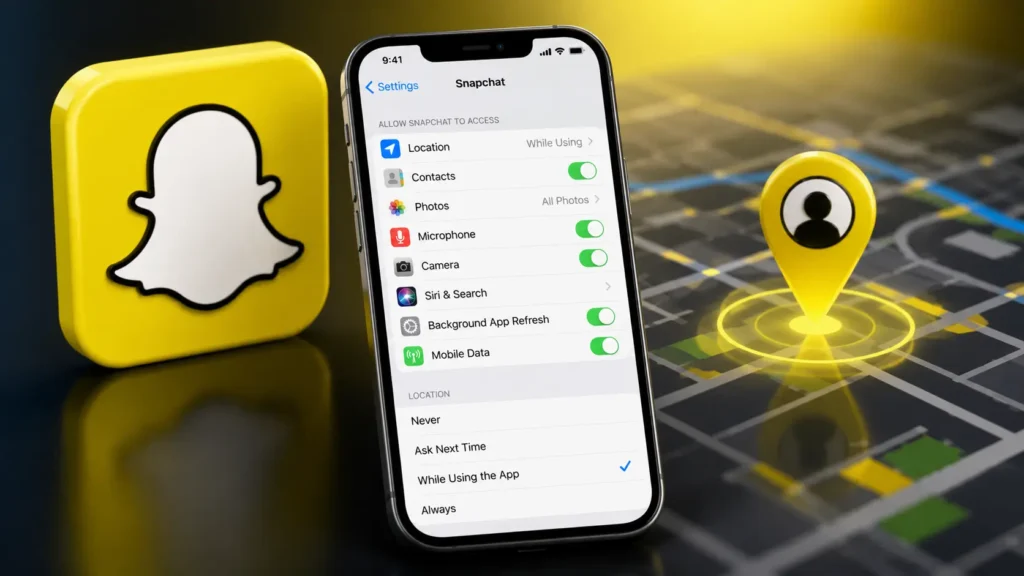
Beyond Snapchat’s internal settings, your device controls offer a deeper layer of privacy. Restricting location access at the system level. Stops the app from collecting your coordinates in the first place.
On an iPhone navigate to Settings then Privacy and Security. Then Location Services, Snapchat and set the permission to Never or While Using the App. Android user can find the same option under Settings, Apps, Snapchat Permissions and Location.
This approach suits anyone who wants a lasting solution rather than a temporary pause. Since it prevents data collection instead of just hiding it from the map.
Ghost Mode Compared to Disabling Location Permissions
Both privacy routes hide you from friends, but they achieve it in different ways. The table below highlights the key differences.
| Aspect | Ghost Mode | Disabling Phone Permission |
| Hides Bitmoji from Snap Map | Yes | Yes |
| Location data still collected by Snapchat | Yes | No |
| Reversible in one tap | Yes | Requires leaving settings |
| Offers automatic timers | Yes | No |
| Ideal use case | Short term or recurring privacy | Long term or permanent privacy |
| Affects other location-based apps | No | Yes |
Choose Ghost Mode for flexibility and quick toggling, or adjust phone permissions if you want Snapchat locked out of your location data entirely.
Snap Map Privacy Settings by Device
Menu paths differ slightly between iOS and Android, and a wrong turn can leave your location exposed longer than intended. Use this table as a quick reference for either platform.
| Step | iPhone (iOS) | Android |
| Open location controls | Settings app then Privacy and Security | Settings app then Apps |
| Find Snapchat permission | Location Services then Snapchat | Snapchat then Permissions |
| Choose restriction level | Never or While Using the App | Deny or Allow Only While Using the App |
| Confirm Ghost Mode inside app | Snap Map then settings gear | Snap Map then settings gear |
| Check for background access | Location Services then toggle Precise Location off | App info then toggle Location off completely |
Common Location Privacy Mistakes and Fixes
Even careful users slip up in small ways. That quietly undo their privacy settings. This table breaks down the most frequent mistakes and how to correct them.
| Mistake | Why It Exposes You | Quick Fix |
| Tagging a location on a public snap | Reveals your spot regardless of Ghost Mode | Remove the location sticker before posting |
| Leaving Quick Add turned on | Lets strangers find and add you more easily | Disable Quick Add in privacy settings |
| Ignoring app update prompts | Defaults can reset after major updates | Recheck Snap Map settings after every update |
| Using shared or family devices | Location can sync to the wrong account | Log out or use per-device Ghost Mode |
| Sharing your Snap Score publicly | Can hint at activity patterns and timing | Limit profile visibility to friends only |
Hidden Risks and Real Protections Behind Your Location Data
Ghost Mode hides your Bitmoji from the map. But Snapchat’s servers can still log location pings while the setting stays off. Understanding this distinction matters if your goal is data minimization rather than just visual privacy.
When Ghost Mode is active, Snap Map stops broadcasting your position to friends. Yet the app may still request your coordinates for features like local Snap suggestions. Weather overlays or nearby event stickers. Turning off location permission at the phone level. It is the only way to stop that collection outright.
Snapchat’s privacy policy states that location data tied to your account is retained, for a limited period. Even after Ghost Mode is enabled, primarily to support safety tools and account recovery. Reviewing the in app privacy dashboard periodically helps you confirm exactly. What is being stored and for how long.
Smart Safeguards Parents Can Use Against Hidden Snapchat Risks
Parents often want a middle ground between full visibility and total invisibility. When a teen uses Snapchat. Rather than disabling location entirely. Many rely on the friend list restriction feature to keep sharing limited to a trusted family circle.
Setting a recurring reminder to review Snap Map settings after software updates helps catch any defaults that reset silently. Combining this with a conversation about location tagging on public stories closes the biggest privacy gap that toggles alone cannot fix.
What Changes After You Pause Your Location
Many users worry that pausing location sharing will disrupt their account in some way, but the impact is limited strictly to visibility. Learning how to pause Snapchat location does not touch messaging, streaks, or story posting in any way. Here is what to expect:
- Your Bitmoji stops appearing on friends’ Snap Map and your position no longer updates
- No notification is sent to friends when you turn on Ghost Mode
- Your snap streaks, direct messages and stories remain fully active
- You can still see the locations of friends who share theirs with you
- Tagging a location manually on a public snap can still reveal where you are
Everything else about your Snapchat experience stays intact. Which makes this one of the lowest risk privacy adjustments you can make.
Habits That Quietly Undermine Your Privacy
A few overlooked details can quietly cancel out your privacy settings. Adding a location tag to a story shares your whereabouts publicly, regardless of your Ghost Mode status.
Leaving your Quick Add settings open can also expose more about your activity than intended. Reviewing your privacy settings after app updates is a smart habit too. Since defaults occasionally shift with new releases.
It also helps to periodically check which friends can still see your live location. Since old connections and inactive accounts often get overlooked during a quick settings review.
The Real Payoff of Mastering Snapchat Privacy
Understanding how to pause Snapchat location puts you back in control of your privacy without sacrificing any of the app core features. Ghost Mode handles quick, situational privacy needs. While adjusting your phone’s permissions offers a more permanent fix. Either way your streaks, chats and everyday Snapchat use continue exactly as before.
FAQs
How do I freeze my location on Snapchat?
Open Snap Map, tap the settings gear and turn on Ghost Mode. Your Bitmoji stops updating on the map right away and you can pick a timer or leave it on until you switch it off yourself.
How do I pause my location without them knowing?
Ghost Mode does this automatically. Snapchat never sends friends a notification when you turn it on. So your Bitmoji just disappears from the map with no alert or announcement.
How do you freeze your last seen on Snapchat?
Snapchat does not show a last seen timestamp the way some apps do but enabling Ghost Mode stops your location from updating. So friends only see where you were before you turned it on.
Can you pause your location on Snap and still be active?
Yes. Ghost Mode only hides your location. You can still send snaps, chat, post stories and use every other feature normally while your Bitmoji stays off the map.