
Your eyes feel tired your mind feels wired and you cannot figure out why sleep keeps slipping away even you put the phone down. The culprit is often sitting right in your pocket. If you want to know how to turn off blue light on iPhone. The good news is that Apple built the tools right into your settings and getting started takes less than a minute.
This guide walks through every method Apple offers from the quick Control Center toggle to deeper accessibility tweak. So you can pick what actually fits your routine instead of guessing your way through menus.
What Blue Light Actually Does to Your Eyes and Sleep
Blue light sits at the high energy end of the visible spectrum and your iPhone screen produces a lots of it. During the day this light keeps you alert and focused. Which is genuinely useful when you are working or driving.
At night that same alertness works against you. Blue light suppresses melatonin productions. The hormone your body release on to signal bedtime. Which has why late night scrolling often leaves you staring at the ceiling instead of drifting off.
How to Turn Off Blue Light on iPhone Using Night Shift
Night Shift is Apple’s built in feature for reducing blue light exposure and it remains the fastest, most reliable way to warm up your display. It works by shifting your screen’s colors toward the amber end of the spectrum once the sun goes down.
Steps to enable Night Shift from Settings:
- Open Settings on your iPhone
- Tap Display & Brightness
- Select Night Shift
- Toggle Scheduled on, or choose Manually Enable Until Tomorrow for a quick fix
- Drag the Color Temperature slider toward “More Warm” for stronger filtering
You have also reach Night Shift faster through Control Center. Swiping down from the top right corner. Press and holds the brightness slide. Then tap the Night Shift icon at the bottom.
Does Night Shift Actually Remove Blue Light?
This has one of the most common points of confusion. So it deserves a straight answer as Night Shift reduces blue light, it does not eliminate it. The feature shifts your display’s color temperature warmer which cuts down on the harshest wavelengths without turning your screen into a fully blue light free zone.
If you are looking for maximum reduction through software alone, pairing Night Shift with the Color Tint accessibility setting gets you noticeably closer, though no on screen filter blocks everything.
Setting Up Color Tint for Extra Filtering
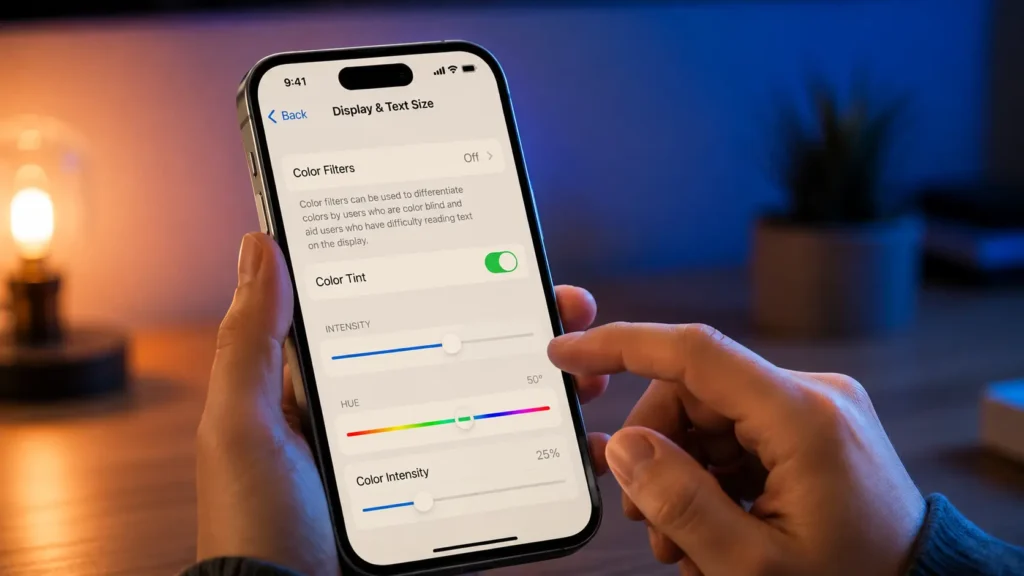
Color Tint lives outside the standard display menu, which is why a lot of iPhone owners never find it. It applies an additional warm overlay on top of whatever Night Shift is already doing.
To turn it on, go to Settings, tap Accessibility. Then Display & Text Size and select Color Filters. Turn the filters on, choose Color Tint and adjust the intensity until the screen feels soft nor than washed out.
A handy trick here has setting up an Accessibility Shortcut. Go to Settings, tap Accessibility then Accessibility Shortcut and select Color Filters. Once that is set, triple clicking the side button toggles Color Tint instantly. Which is far easier than digging through menus every night.
Other Display Settings Worth Adjusting
A few additional settings work alongside Night Shift to make nighttime screen use gentler on your eyes.
- Reduce White Point: found under Accessibility, then Display & Text Size. This dims brightness beyond the standard slider range
- Dark Mode: switches app backgrounds to blacks or dark gray. Cutting overall light output even though it does not filter blue light directly
- True Tone: adjusts color balance based on ambient lightening. Best used alongside Night Shift nor than as a replacement for it
Night Shift vs Dark Mode vs Color Tint
People often assume these three settings do the same job. But each one targets a different problem. Here is how they actually compare.
| Feature | What It Does | Blocks Blue Light? | Best Time to Use |
| Night Shift | Warms overall screen color | Partially | Evening through night |
| Dark Mode | Darkens app backgrounds | No, reduces brightness only | Anytime, especially low light |
| Color Tint | Adds a warm color overlay | Partially, stronger than Night Shift alone | Right before bed |
| Reduce White Point | Lowers brightness ceiling | No | Anytime screen feels too bright |
Using these together gives you the most comfortable nighttime display without needing any third party app.
Turning Blue Light Filters Off Again
Sometimes you need your screen’s true colors back. Especially if you are editing photos or checking colors its matter. Turn things off is just as quick as turn them on.
Go to Setting, tap Display & Brightness then selects Night Shift and toggle it off. If you had a schedule running disable that too. Otherwise the feature will simply switch back on that evening. The same path applies to Color Tint: head back into Color Filters and switch the toggle off.
Blue Light Settings on Android and Samsung Phones
If your household mixes device types. It helps to know these tools are not exclusive to Apple. Most Android phones include a similar feature called Night Light or Eye Comfort Shield, found under Settings and then Display.
Samsung devices offer Eye Comfort Shield with both Adaptive and Custom scheduling options, adjustable through a slider much like Apple’s Color Temperature control. Other manufacturers use different names, such as ComfortView on select LG models, but the underlying function stays consistent across brands.
When You Should Actually Use These Settings
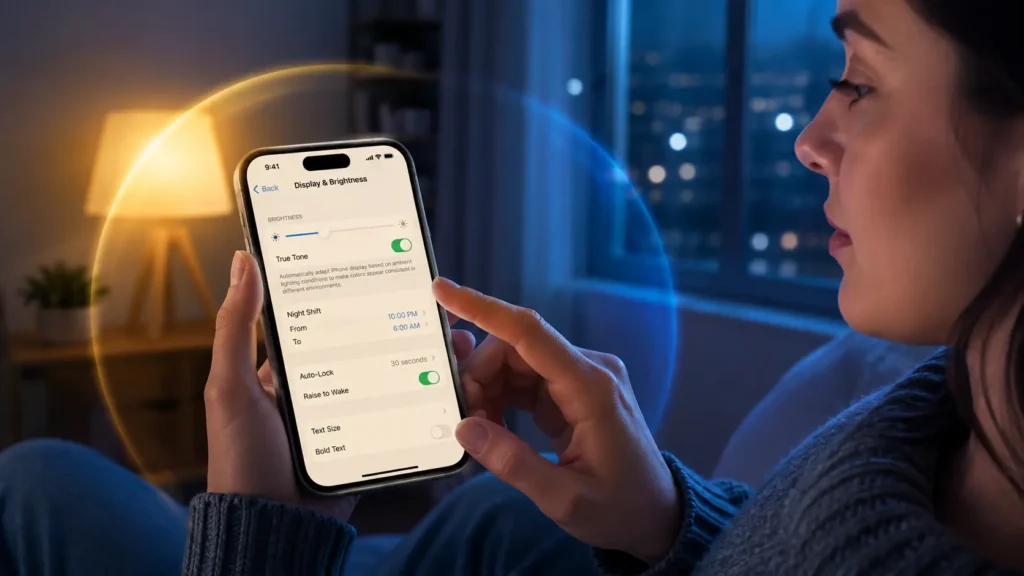
Blue light filtering is not something you need running around the clock. It earns its place during specific windows of your day.
Evening hours after sunset, dimly lit rooms, and extended reading or scrolling sessions before bed are the moments where warming your screen makes the biggest difference. During daylight hours or when color accuracy matters like editing photos, it is worth switching filters off temporarily.
Final Thoughts
Learning how to turn off blue light on iPhone has less about flippings one switch. More about combining a few setting that work well togethers. Night Shift handles the basics Color Tint adds extra warmth when you need it and Dark Mode rounds things out by cutting overall brightness. None of these settings alone eliminates blue light completely but layered together. They make a real differences for your eyes and your sleep.
FAQs
How do I disable the blue light on my iPhone?
Go to Settings tap Display & Brightness. Tap Night Shift and turn the toggle off. If you had a schedule running switching that off too or Night Shift will turn back on automatically that evening.
Is there a blue light blocker for iPhone?
Yes Apple has built in Night Shift feature works as a blue light blocker by warming your screen’s color temperatures. For extra filtering you can also turn on Color Tint through Accessibility setting.
How do I turn off the blue light in my phone?
Open Setting go to Display & Brightness. Tap Night Shift and disabled it. If you also enabled Color Tint under Accessibility head backs into Color Filters and toggle that off as well.
Does night mode on iPhone stop blue light?
Night Shift reduces blue light by shifting your screen to warmer tones. But it does not stop it completely. For stronger reduction pair it with Color Tint and keep the color temperature slider set toward “More Warm.”