
Your quiz opens in just ten minutes. The screen goes still, the login refuses to cooperate, and your chest tightens. Thousands of students across the US face this same scramble every exam season and most of it can be avoided. Having the Illuminate Lockdown Browser prepared early swaps a stressful moment for a steady one.
This guide shows how the secure testing tool works, how to get it installed, how to access your account and how to clear the typical glitches. Teachers also get a prep plan. Read it once and test day becomes calm and predictable.
What Is Illuminate Lockdown Browser?
It is a secure testing environment that locks your device to a single assessment. Schools use it with Illuminate Education’s assessment platform, often connected to DnA, to deliver exams in a controlled setting. Learn more about the Illuminate Locked Browser.
As soon as the exam goes live, the app restricts your device’s features. You cannot visit outside websites, run other applications or copy and paste text. These controls uphold assessment integrity and give every student an equal, fair result.
Illuminate Lockdown Browser Ready in Five Quick Minutes
Illuminate online lockdown browser started is easy when you take the steps in the correct order. Your school or district manages the approved download source. So begin with the link your teacher or IT office shared. Stay away from unofficial third-party websites because counterfeit installers can hide malware.
A typical access-code process looks like this:
| Step | What to do |
| 1 | Open the Illuminate testing page supplied by your school |
| 2 | Enter your required student information |
| 3 | Enter the assessment access code if one is provided |
| 4 | Check that the assessment information is correct |
| 5 | Confirm your details |
| 6 | Launch the secure testing environment |
| 7 | Start the assessment when your teacher tells |
That final step counts the most. A trial run reveals missing permissions, outdated system software and blocked installs while you still have time to solve them.
Device by Device Install Notes
Different devices get the testing tool in different ways
- Chromebook: Your school usually installs the tool for you as an extension or app.
- iPad: Download the testing app from the App Store.
- Windows or Mac laptop: Download and run an installer. If the device is managed by your school. You may need an administrator to approve it.
Before you search for the tool then check what type of device you have. If you’re not sure. Look at its operating system first. This helps you avoid downloading the wrong tool and saves time.
Best Devices for Illuminate Testing
Device type shapes your install path and your risk of surprises. The table below gives a general comparison. Always confirm current compatibility with your school. Since requirements change with software updates.
| Device | Typical Install Method | Common Hurdle | Quick Prevention |
| Chromebook | District managed app or extension | Wrong account signed in | Sign in with your school account |
| iPad | App Store download | Guided access or old iOS version | Update iOS before testing |
| Windows laptop | Installer file | Admin permission blocked | Ask IT to approve in advance |
| Mac laptop | Installer file | Security prompt on first launch | Allow the app in system settings |
Illuminate Lockdown Browser Login: Get In Without the Headache
Most sign-in trouble comes from three small mistakes: the wrong username format, an expired password or the wrong portal. If you are also having trouble reaching the testing page, a secure connection error can sometimes point to a browser or network problem. Your login for the Illuminate.online lockdown browser session usually matches your school credentials. Some districts use single sign-on. So you may log in through your district portal instead of typing details directly.
Try this order if the screen rejects you. First retype your credentials slowly and check Caps Lock. Second confirm you are using the portal link your teacher provided. Third reset your password through your school’s help desk. Never share your password to “save time,” even with a friend.
What Gets Blocked During a Test
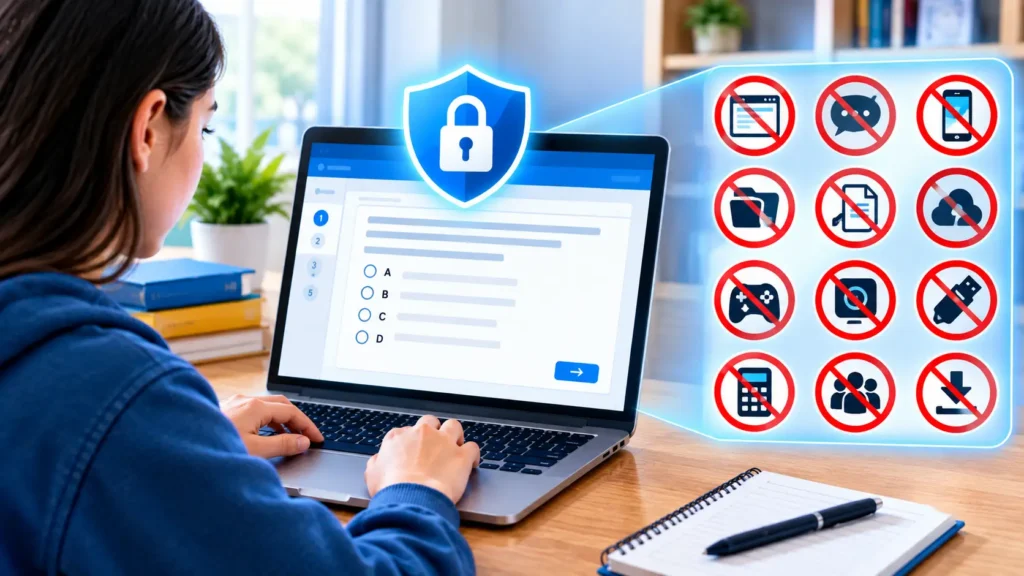
Knowing the rules removes the fear. While the secure session runs, expect these restrictions:
- Other browser tabs and websites stay locked.
- Screenshots and screen recording are disabled.
- Copy, paste and print functions are turned off.
- Messaging apps and notifications are suppressed.
- Exiting the app early may flag your session for your teacher.
These limits are deliberate. They create a level field so a student who studied hard earns the same fair shot as everyone else.
Squash Common Errors Fast
Errors feel scary but most have simple causes. The table below pairs frequent problems with quick fixes.
| Problem | Likely Cause | Fast Fix |
| App will not open | Outdated app or system | Update both then relaunch |
| Test will not load | Weak WiFi | Move closer to the router or switch networks |
| Login loop | Cached credentials | Close the app fully then sign in again |
| Black screen | Display or permissions glitch | Restart the device and reopen |
| Kicked out mid test | Background app interfered | Close all other apps before starting |
If none of these works, stop and tell your proctor immediately. Do not keep guessing because repeated exits can complicate your session record.
Ready Your Workspace Before Test Time
Your environment affects your focus as much as your software does. Plug in your charger since a dying battery can end a session. Close every app you do not need. Silence your phone and place it out of reach.
A quiet seat and a stable internet connection also help. Run a fast speed check the night before. If your home signal is shaky so ask whether you can test at school instead.
A Teacher’s Prep Plan
Teachers carry the biggest load and a little planning saves a lot of chaos. Schedule a short practice session a few days before the real exam. Students who see the interface once feel far calmer on the big day.
Send clear instructions in one message like the install link, the login steps and a support contact. Then test the assessment yourself on a student style device. This catches broken settings, missing question sets and time limit mistakes before students ever see them.
Frequent Missteps and Wiser Routines
Small habits separate smooth test days from stressful ones. Review this comparison.
| Risky Habit | Smarter Habit |
| Installing on exam morning | Installing three days early |
| Using personal accounts | Using official school credentials |
| Ignoring update prompts | Updating the night before |
| Testing on low battery | Plugging in before launch |
| Staying silent about glitches | Alerting the proctor at once |
Most failures come from timing, not technology. Early action solves nearly everything on this list.
Personal Data, Security and Assurance
Students and parents often ask what the app can see. Secure testing tools generally monitor activity inside the exam session so they can enforce the rules. They exist to protect fairness, not to snoop on your personal life.
Still you should read your school’s acceptable use and data privacy policy and follow good account security habits when using testing software. Districts in the US must follow student privacy laws such as FERPA. If something feels unclear, ask your school’s technology office. A good district will explain what data it collects and why.
Who Gains the Most From Secure Testing?
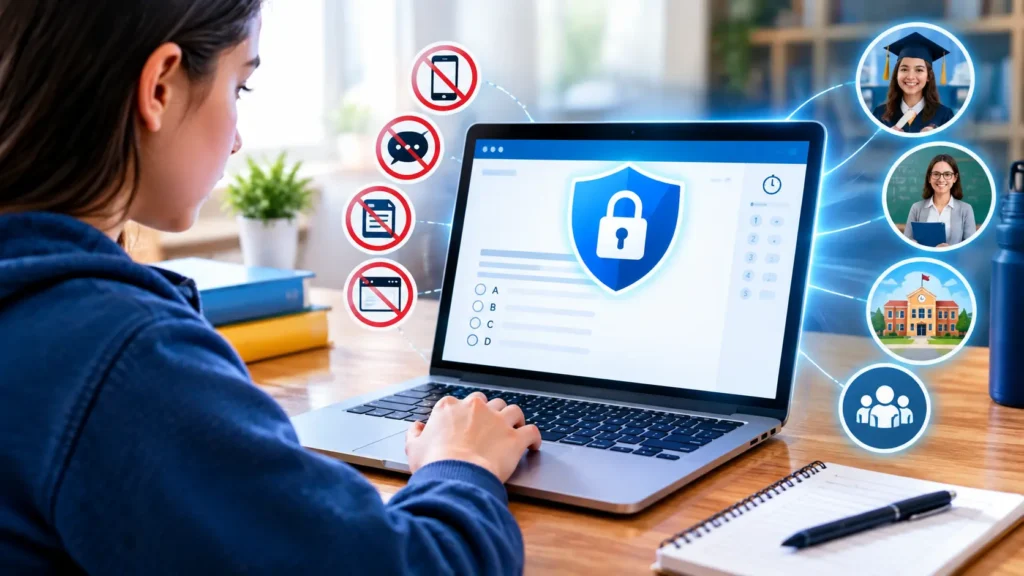
Students gain a fair, distraction free exam. Teachers gain trustworthy data about what learners actually know. Administrators gain reliable benchmarks for tracking progress across classrooms and campuses.
This matters for standards based grading and formative assessment alike. When results are honest it means instruction improves. Teachers can spot gaps, adjust lessons and support struggling students sooner.
In Conclusion
Being prepared always wins over last minute stress. Download the software ahead of time. Check that you can log in, make sure your device is fully charged and review the exam rules. The Illuminate Lockdown Browser performs best. When you view setup as part of your exam prep instead of something to rush at the end.
Stick to your school’s official guidelines, reach out for help sooner rather than later. Go into your exam feeling self assured. Starting off relaxed often leads to a better result.
FAQs
What is the Illuminate Locked Browser?
It is a secure testing browser used with Illuminate Education’s online assessments. When a test opens, it blocks printing, copying other websites and other apps. Students stay inside the exam until they submit. So every score reflects the same conditions for the whole class.
What does a lockdown browser see?
A standard lockdown browser sees activity inside its own window such as your test and the apps it blocks. It focuses on restricting your test session, not exploring your files. Some schools add webcam or screen recording features which capture more. Settings vary by district so read your school’s testing policy before the exam.
How do you know if a lockdown browser flagged you?
Students usually cannot see flags during the test. Instructors review any flagged moments afterward often in a report. A frozen screen or warning message does not always mean a flag. If you worry about a technical glitch then tell your teacher right away and document what happened.
Can a lockdown browser track eyes?
The basic locked browser does not track eyes. If your instructor enables webcam proctoring extensions. They capture video and can detect behaviors. Such as gazing away, exiting the frame or extra individuals appearing in view. The final judgment on every flag rests with your instructor. Check with your teacher to learn if camera monitoring covers your exam.