
Learning the 8051 microcontroller gets a lot easier when you can test your code, without soldering a single wire. That’s exactly why so many embedded systems students search for how to install EdSim51 in Win 10, since this free simulator lets you write, run and debug 8051 assembly code entirely on your PC.
Whether you’re working through a college embedded systems course or teaching one, getting the simulator running correctly the first time saves you from troubleshooting mid assignment. This guide covers everything from prerequisites to your first launch, along with a few practical tips that most tutorials skip. If you enjoy installing and configuring Windows software yourself, you may also like our guide on How to Install Wangofan, which explains another step-by-step Windows installation process.
What Is EdSim51?
EdSim51 is a free 8051 microcontroller simulator built specifically for students and educators. Unlike industry grade simulators that only show register values and memory states. EdSim51 pairs the virtual 8051 with interactive peripherals like a keypad, motor, LCD module and UART.
That hands on approach matters because embedded systems concepts click faster. When you can see a program actually spin a motor or light up a 7-segment display. It has the kind of tool that turns abstract register manipulation into something you can watch happen in real time.
Before You Begin: System Requirements
Getting your system ready first prevents the most common installation headache: a missing Java Runtime Environment. EdSim51 runs on Java, so it works the same way across Windows, macOS and Linux.
Here has what you need before downloading anything:
- Windows 10 (64-bit recommended, though 32-bit works fine too)
- Java Runtime Environment (JRE) version 8 or later
- At least 50 MB of free disk space
- Administrator access for the initial Java installation
- A stable internet connection for downloading both Java and the simulator
Most modern Windows 10 machines already have some version of Java install. But it has worth confirming before you move forward. If Windows prevents you from extracting or saving the simulator files, our guide on You Don’t Have Permission to Save in This Location explains how to fix common folder permission errors.
How to Install EdSim51 in Win 10 Step by Step
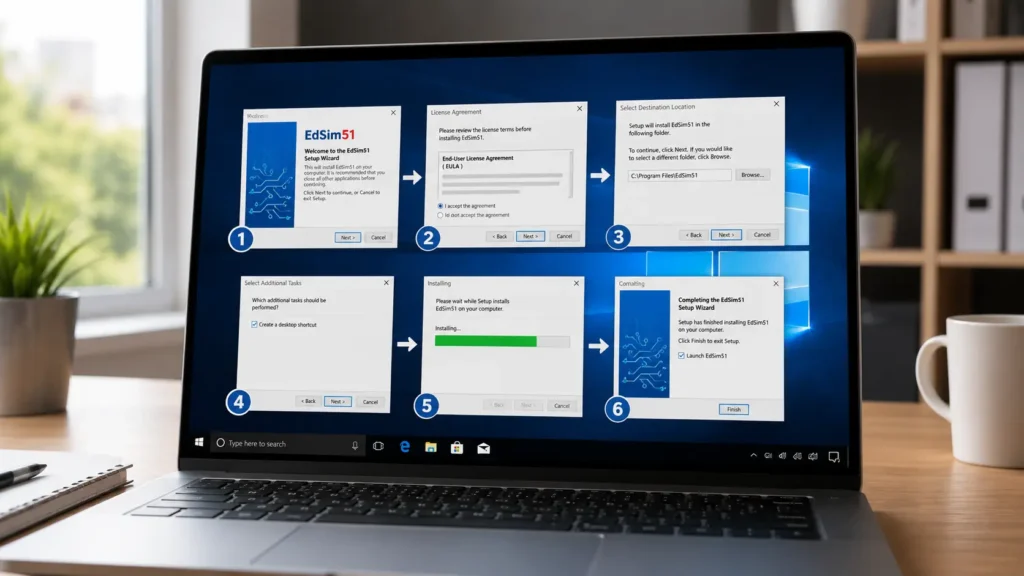
Once your system is ready the actual process is straightforward. Below is the complete walkthrough for getting the simulator up and run.
Step 1: Installs or Verify Java
Opens a Command Prompt window and type java -version. If a version number appears. Then Java has already installed and you can skip ahead.
If you see an error instead, head to the official Java website and download the latest Java Runtime Environment for Window. Run the installer and accept the license terms and let it completes. Restart your Command Prompt afterward and check the version again to confirm.
Step 2: Download the EdSim51 Simulator
Visit the official EdSim51 website and download the simulator package. Which comes as a single zip file. Save it somewhere easy to find like your Desktop or Documents folder nor than burying it in a temporary downloads folder.
Downloading directly from the developer’s official site matters here. This ensures you get the current unmodified version of the software. After downloading EdSim51, you can even share installation files or troubleshooting tips with classmates using platforms discussed in our Messagenal guide.
Step 3: Extract the Zip File
Right click the download zip file and select Extract All. Windows 10’s built in extraction tool handles this. Without needing any third party software.
Inside, you have find two things as a folder named lib and a jar file. These two items work together. So keep them in the same folder at all times. Moving the jar file alone without its lib folder. It cause the simulator to failed on launching.
Step 4: Launch the Simulator
Double click the jar file to open EdSim51. Since Java is already registered to handle jar files on most Windows 10 systems. The simulator should open within a few seconds.
If nothing happens when you double click it. Right click the file instead then choose Open With. Select Java Platform SE Binary from the list on this available programs.
Powerful Fixes for Common Installation Issues
Even a simple installation process can run into snags. Here are fixes for the problems users hit most often.
Double-clicking the jar file does nothing. This almost always means Java isn’t properly associated with jar files. Reinstalling Java usually fixes the file association automatically.
“Could not find main class” error. This happens when the lib folder got separated from the jar file at some point. Re-extract the zip file fresh and don’t move either item individually.
Simulator opens but peripherals look blank or broken. This is typically a display scaling issue on high resolution monitors. Right click the jar file and go to Properties. Then Compatibility and try adjusting the high DPI settings.
Nothing happens and no errors appears at all. Try launching from the commands line insteads. Open Command Prompt navigate to the folder that has containing the jar file and type java -jar followed by the file name. Any hidden error messages have show up in the terminal windows.
EdSim51 vs Traditional 8051 Simulators
Students often compare EdSim51 against industry-standard simulators before deciding which tool fits their coursework better.
| Feature | EdSim51 | Industry-Standard Simulators |
| Cost | Free | Often licensed or paid |
| Interactive peripherals | Yes | Rarely included |
| Designed for students | Yes | Designed for professionals |
| Visual feedback (motor, LCD, LEDs) | Yes | Limited or none |
| Learning curve | Beginner-friendly | Steeper |
This comparison highlights why EdSim51 has become a go-to teaching tool. It trades some professional grade features for a visual, beginner friendly experience that makes core concepts easier to grasp.
EdSim51 Strengths and Limitations at a Glance
Knowing where this tool genuinely helps and where it runs out of runway makes it easier to decide how much of your coursework to rely on it for.
| Area | Strength | Limitation |
| Cost | Completely free with no license fees | No paid tier for advanced professional features |
| Visual learning | Interactive peripherals make concepts click fast | Visuals can’t fully replace hands on hardware experience |
| Setup | Lightweight install, runs on any OS with Java | Java dependency adds one extra step most students skip |
| Platform support | Works identically on Windows, macOS and Linux | Interface feels dated next to modern IDE-based tools |
| Scope | Great for 8051 fundamentals and coursework | Limited compared to industry simulators used in real jobs |
Getting the Most Out of Your First Session
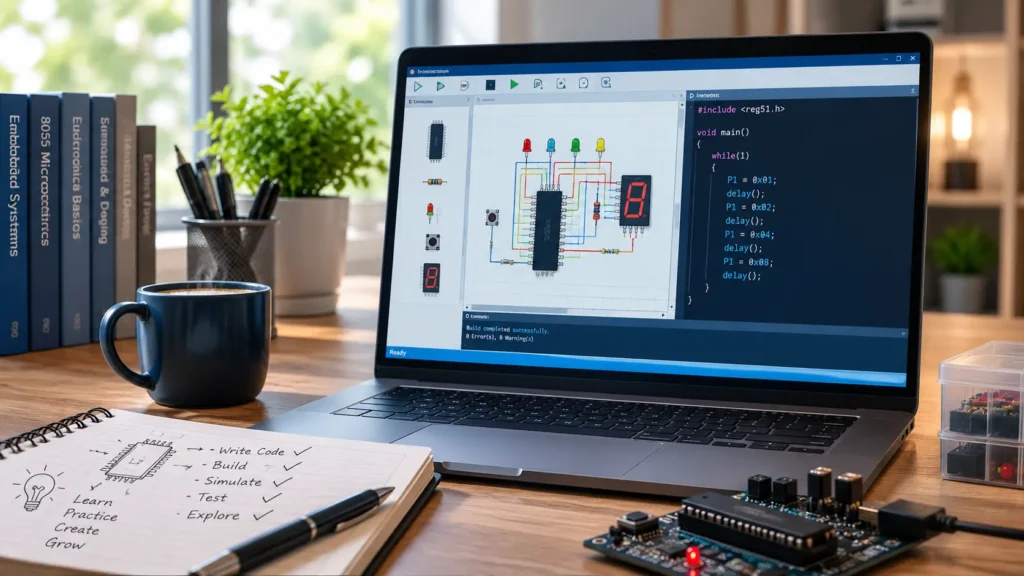
Once you’re comfortable with embedded programming, it’s worth exploring how AI is transforming software development in our Droven.io AI for Business guide. Once the simulator is open you spend a few minutes on exploring the interface before diving into a full program. Load one of the example assembly files first to see how the register paneland bit fields and peripheral board respond as code executes.
Stepping through instructions one at a time. Nor than running a program continuously, gives you a clearer picture of exactly what each line does to memory and the port pins. This habit pays off enormously once when you start writing your own routines for the keypad, motor or LCD module.
Final Thoughts
Once you know how to install EdSim51 in Win 10. You have a genuinely useful hands on tool for learning the 8051 micro controller without needing physical hardware on your desk. The setup itself takes only a few minutes. The payoff is a simulator built specifically to make embedded systems concepts easier to visualize and understand. Even if it won’t fully replace industry-grade tools once you move past the fundamentals
FAQs
Do I need to buy anything to use EdSim51?
No, EdSim51 is completely free to download and use. There have no license fees, subscriptions or hidden cost. The only requirement has having the Java Runtime Environment installed on your Windows 10 machine before running the simulator.
Why won’t my EdSim51 jar file open on Windows 10?
This usually means Java hasn’t installed or isn’t associated with jar files. Reinstall the latest Java Runtime Environment. Then try double clicking the file again. If that haven’t work then launch it manually through Command Prompt using the java -jar command.
Can I run EdSim51 on Windows 11 as well?
Yes, since EdSim51 is Java based it runs the same way on Windows 11 as it does on Windows 10. As long as the Java Runtime Environment has installed correctly. The installation and launch steps stay identical across both versions.
Does EdSim51 support programming in C?
Yes, EdSim51 primarily works with 8051 assembly code. But it also supports importing programs written in C. This makes it flexible enough for courses that teach both low level assembly work and higher level embedded C programming.